Basic HTML Version


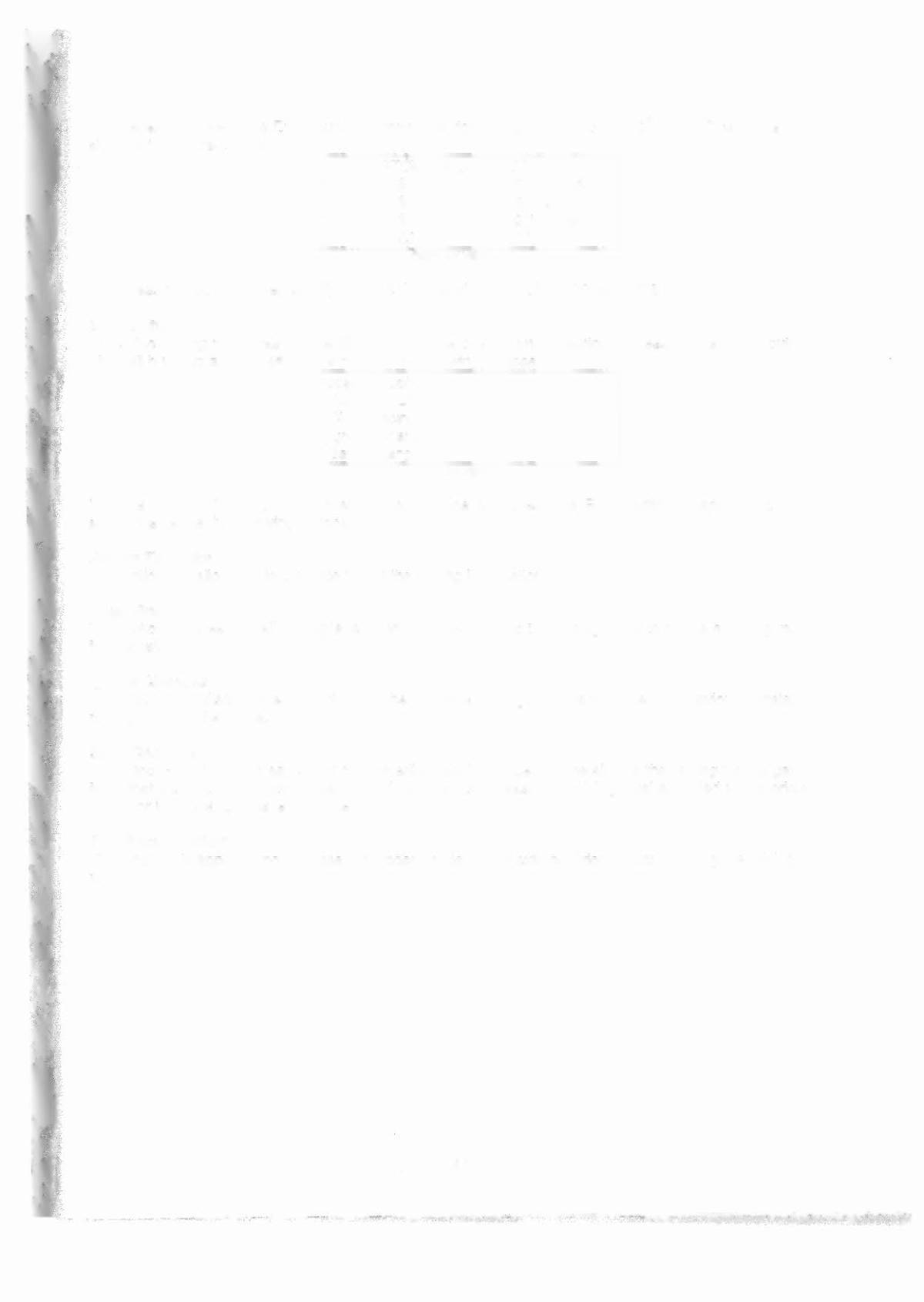
Now repeatedly press the Enter button to move the right hand column to the
zo"
level. The display will
show (with "10 cred." Blinking):
r.===~C~U~ST~O~'~~P~R~IC~IN=G~E~D~IT~O~R====~
17)
$4.25
81/2 credo
18)
$4.50
9 credo
19)
$4.75
91/2 credo
20)
$5.00
10 cred
DISPLAY VIEW
Now press the Up button repeatedly until the right hand column of line 20 reads "15 cred."
Start Button
Once the pricing mode has be specified, you exit the custom pricing editor by pressing the 'Start" button.
This will bring up a menu with some or all of the following choices:
Choose an Option:
Return to Editor
Clear Pricing
Ignore Changes
Save Changes
DISPLAY VIEW
Use the Up and Down buttons to select your choice and press the Enter button to activate it. The
selections cause the following actions:
Return
To
Editor
This option will allow you to continue to edit the pricinq information.
Clear Pricing
This option will clear out all pricing levels and bring you back to the pricing editor to create a priCing mode
from scratch.
Ignore Changes
This option will discard the work done in the previous pricing editor and leave the previously installed
pricing mode in the game.
Save Changes
Press the Enter button to save your custom edited pricing mode and install it as the pricinq for the game.
Note that this choice will not be displayed if there is not at least one pricing level specified in the pricing
editor, or if no changes have been made.
Exit Pricing Editor
This option will appear
if
no changes have been made. It will exit the Pricing Editor leaving the pricing as
is.
1-41